Quickstart
Installation
tmt is available on PyPI and can be installed with:
pip install ThatMetricTimeline
Usage
tmt can keep track of your experiments. Every experiment will be saved as an entry in a json database, with results and code snapshot backups saved in different folders. By default, tmt will:
Create a
.tmtdirectory in your current working directory;Create a
.tmt/tmt_db.jsonfile which will be used as a database;Create a
.tmt/snapshotsdirectory, where code snapshot backups will be saved. A symlink.tmt/snapshots/lastwill also be created and will always point to the last snapshot taken. See the Snapshots section for more details.
Should you want to change where all of this is saved, check the Configuration section. Code examples are provided in the examples folder on Github.
Tracking experiments
While more optional features will probably come in the future, the library goal is to be simple, both for the user and for the library developer.
The main function exposed by tmt is actually the tmt_recorder decorator (see tmt.decorators.recorder.recorder()). This is what we use to actually store and keep track of experiments.
The decorator takes a name parameter (and a few optional more). The experiment will be saved and later searched with this name.
The decorated function might return a dictionary with the metrics the user wishes to save for later retrieval. If you don’t want to save any metric, the function must return None or an empty object (e.g. {}).
from tmt import tmt_recorder

@tmt_recorder(name="some_experiment")
def train_and_predict(x_tr, y_tr, x_te, y_te):
    lr = LogisticRegression()
    lr.fit(x_tr, y_tr)
    preds = lr.predict(x_te)
    return {'f1': f1_score(y_te, preds), 'accuracy': accuracy_score(y_te, preds)}
Note
New in 0.1.8: tmt_recorder now accepts a description optional parameter.
Changing experiments name dynamically
Should you want to set the experiment names dynamically (e.g., in a loop), you can do:
import sys
from tmt import tmt_recorder

def train_and_predict(...):
    ...

if __name__ == '__main__':
    for i in range(10):
        decorated = tmt_recorder(name=f"some_experiment_{i}")(train_and_predict)
        decorated(...)
    # or maybe...
    decorated = tmt_recorder(name=sys.argv[1])(train_and_predict)
    decorated(...)
Saving objects with TMT
The other key function tmt exposes is tmt_save (see tmt.history.utils.save()). This function should be called by the user to save any kind of pickable object, at any time.
If we wanted to save the predictions in the example above, we would do:
from tmt import tmt_recorder, tmt_save

@tmt_recorder(name="some_experiment_with_data")
def train_and_predict(...):
    ...
    preds = lr.predict(x_te)
    tmt_save(preds, name='lr_predictions')
    return {'f1': f1_score(y_te, preds), 'accuracy': accuracy_score(y_te, preds)}
As you can see, we give a name to the saved object as well. This should make it easier to recognize what this pickled object refers to.
Using a custom save function
Note
New in version 0.1.8.
If you wish, it is possible to define a custom save function that can:
Use something, such as numpy, to save the object, instead of pickle;
Change the saved path.
Here’s an example for both:
from tmt import tmt_recorder, tmt_save
import numpy as np

def my_save_fn(obj, path):
    np.save(path, obj)

def save_fn_path(obj, path):
    new_path = 'custom_path.npy'
    np.save(new_path, obj)
    return new_path

# ...
def train_and_predict(...):
# ...
    tmt_save(preds, name='lr_predictions', custom_save=my_save_fn, extension='.npy')
    tmt_save(preds, name='lr_predictions', custom_save=my_save_fn_path)
Warning
When using numpy.save function, if the extension is not .npy, the path will be
expanded by numpy to include that extension. This can bring to tmt saving the path
without the .npy extension, thus making it unable to load the object. To avoid this,
remember to specify the .npy extension or to use your own custom path
(which includes the .npy).
TMT Terminal User Interface
tmt offers a terminal user interface (TUI) which should be installed in your path when you pip install the library.
You can access the TUI by typing:
tmt_tui
This should be launched from the root of your project. If you’re using a custom configuration (see Configuration), you can specify it like this:
tmt_tui -c /path/to/your/config.json
You will be presented with the following old-fashioned interface (who doesn’t love the 90s?):
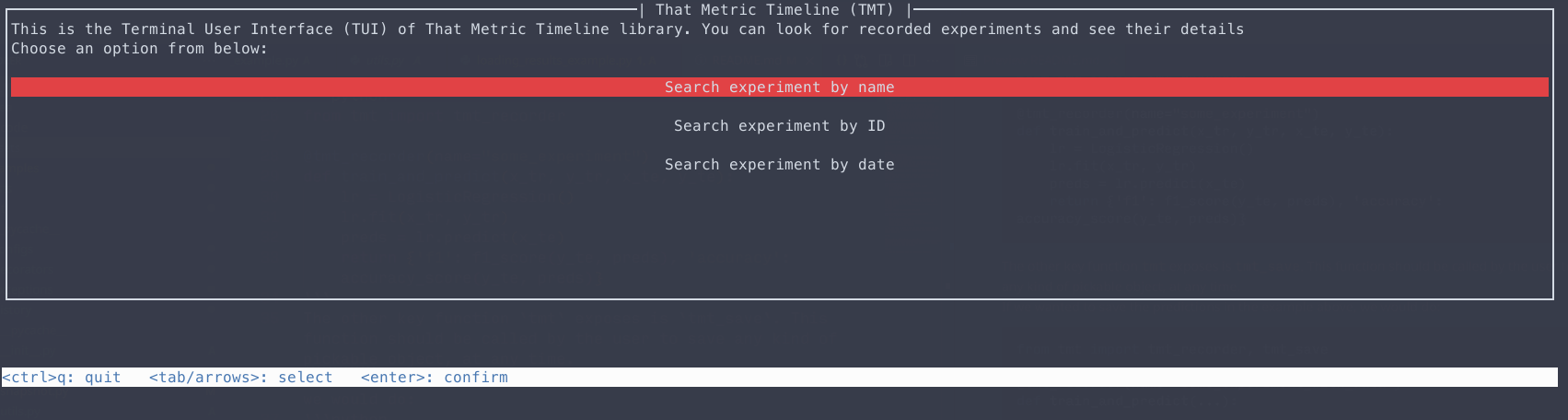
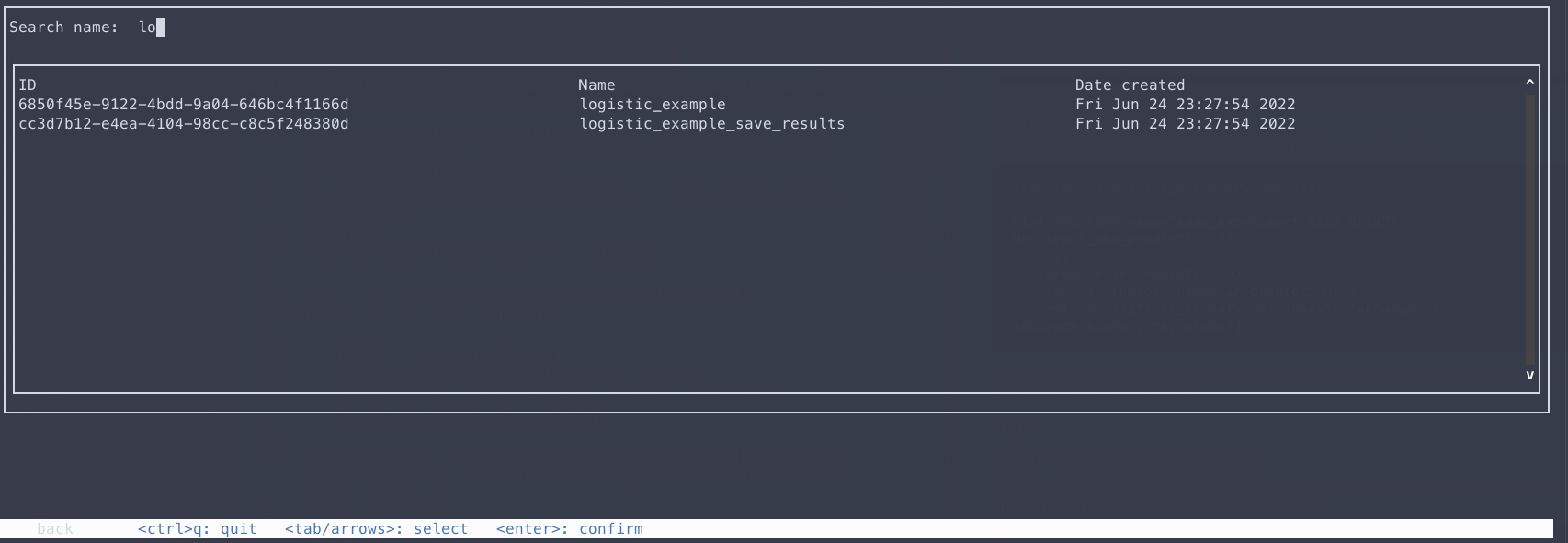
You can move around with the arrow (or the tab and shift+tab) keys. You can then search by name in this interface:
Note
Since version 0.1.7, you can also use a regex pattern.
Once you select an experiment you can see some details about it:
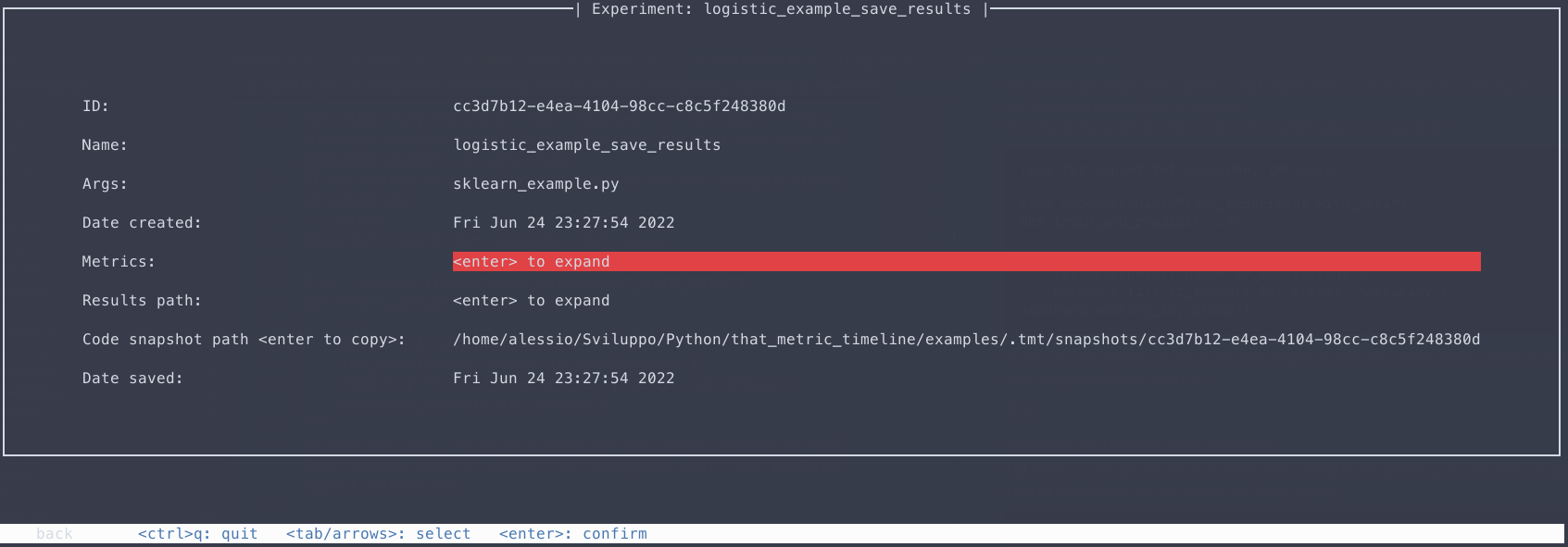
The Search experiment by date functionality is not implemented yet and will come in a future release. You can however use the TmtManager (see the next section, and tmt.utils.manager.TmtManager()).
Loading and using tracked experiments in your code
tmt offers a minimalistic TmtManager helper class, which can help you load an experiment in your code, load pickled results, see metrics etc.
Once you have the ID (or a unique name for your experiment) you can:
from tmt import TmtManager

# Let's say we know there is an experiment with id "example"


# An Entry is a row in the database, i.e. an experiment that was tracked.
manager = TmtManager()
manager.set_entry_by_id('example')

# load the results and unpickle them
for name, path in manager.results_paths():
    with open(path, 'rb') as f:
        # do stuff with your results. If it's a pickle it's
        # more convenient to use the code block below this one
        res = pickle.load(f)

# load the unpickled results
for name, res in manager.load_results():
    # do something with your results.
    # if res is a numpy array...
    print(res.mean())


for name, val in manager.get_metrics():
    print(f"{name}: {val}")
Should you need it, you can access the “low level” database manager from the manager.db member.
# If you need to do other stuff, like searching for
# experiments between two datetimes and so on
# you can access the `db` member like
manager.db.get_entries_greater_than_date(date_or_timestamp)